Thursday, October 1, 2020

How to remove or uninstall Microsoft Edge from Window 10


Microsoft's Edge browser uninstalling is quite difficult in Windows 10. We will let you know in this post that how can you uninstall edge from window 10.

Microsoft has updated its Edge browser in Windows 10 so that it uses the Chromium browser as its base.

Should we uninstall Edge from Windows 10?

For my point of view it’s not a good idea. as it is a part of window 10 now. Microsoft want to make it an integral part of the OS. In a press conference Microsoft has stated that, ‘The new version of Microsoft Edge is included in a Windows system update, so the option to uninstall it or use the legacy version of Microsoft Edge will no longer be available’.

Rather than removing edge from window you can change your default browser in window 10 as per you preference. 

Before you removed Edge, I suggest you spend some time trying it, as it’s actually a very good update to the previous version.

But, if you really want to remove or uninstall the edge browser from your system, you can always use the PowerShell route outlined below.

How to remove or uninstall Edge from Windows 10

Uninstalling Edge takes a bit of work and you should know that you’ll only be getting rid of the Chromium version of the app, with the legacy edition being left in its place.

  • To removing this just, go to the Start Menu and type in powershell. 
  • You’ll see an app called Windows PowerShell appear at the top of the list.
  •  Right click on this and select the option Run as administrator to be able to use the uninstall command later on. 
  • You’ll also have to give permission for the app to make changes to your device, so click Yes.

  • At the command prompt, enter the following command;


get-appxpackage *edge*


After pressing Enter key, you’ll see a list appear with headings on the left and then the data on the right. Find the heading ‘PackageFullName’ and copy the details to the right of it.

Finally, enter the following command at the prompt;

remove-appxpackage [paste in the details you’ve just copied]


Then press the enter key and that's all. just keep in mind, that in future Windows 10 updates, the system may well reinstall the app once more.


How to change default browser or program in window 10


When you click on a web link in an email or any messaging app, it will open in whichever browser is set as the default. for example  in your machine Microsoft edge is set as a default but you want to change your default browser as Chrome or Firefox. So here's how to set your preferred browser as default in Window 10 Operation system.

If you're not careful when installing any new applications on Windows then they can be make themselves the default for opening various files or links. For example, many people prefer Google Chrome over Internet Explorer or Microsoft Edge in Windows 10. 

Here we have explain how to change your default browser so that links always open in the right one.

How to change your default browser

When you first install a new web browser it will ask you if you want to set it as the default. This is a good practice to do so, as well as to import things such as bookmarks, browsing history and other preferences from your old browser.
If you skipped this step or declined it intentionally but want to make it your default, here's how to do it.

Chrome

If you want to use Chrome or any other web browser, either go to Control Panel if you're running Windows 7 or earlier, or open the Settings app in Windows 10

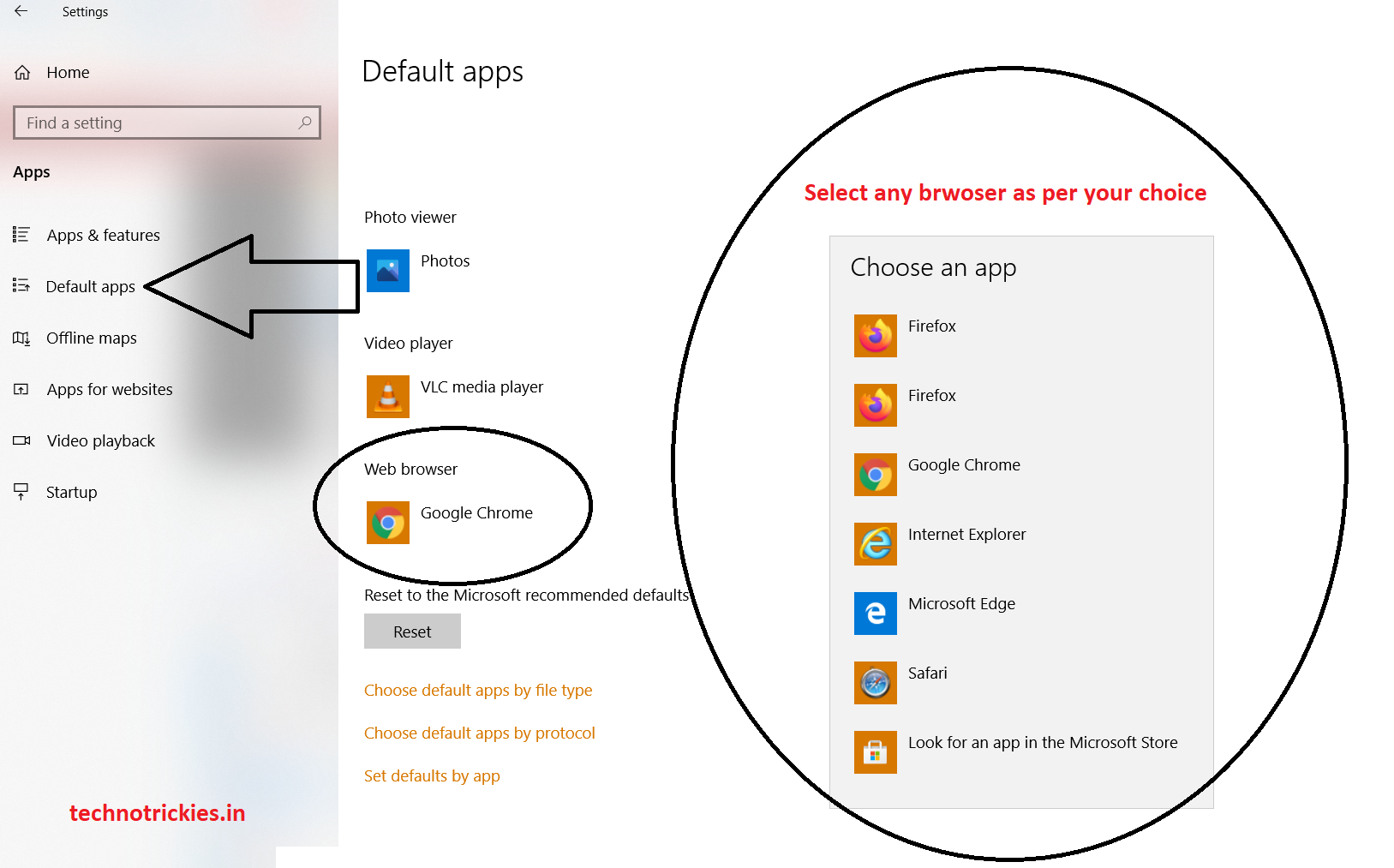
In Windows 10 in the Settings app, simply click on Apps and then Default apps. Scroll down and change the default browser using the drop-down menu.


Firefox

similarly you can set with Firefox as default. you just follow the above given screenshot.  


In Windows 7 or 8 , Go to Control Panel go to Programs > Default Programs and then Set Default Programs. Scroll down the list to find Chrome (or the browser you want) and click on it. Now click "Set this program as default".

In this manners you can change the default program in your window or machine. you can also change media player, default image viewer etc.

Do let me know your thought and comment me in case of any question.


Saturday, September 26, 2020

Important Things to Look for When Buying a New Laptop


 Buying a new laptop is not an easy thrill as there is a huge variety of laptops in the market. It just confuses people to choose the best for themselves. There are many options to choose from. We are trying to make this process easier for people, so that they are given a set of criteria, some basic things besides budget, which everyone should think about before purchasing new equipment. Given below are some of those important things.

1. Size

The size of the laptop varies from 12 inches to 17 inches. However, it all depends on what your device is used for. Therefore, it is important to choose an ideal size. Devices ranging from 12 to 14 inches are portable in addition to being thinner and lighter than others.

These include the EliteBook and Ultrabook. Traditional notebooks are around 15.6 inches, which makes them a good mix of portability and power. Convertible devices can convert to tablets because the keyboard either detaches or folds. Some also have a touch screen option. These devices are available in almost all brands, such as HP, DELL, ASUS and LENOVO.

2. CPU

Processing speed is another important factor in the search for new laptops. Most devices are equipped with Intel's core based CPUs, such as the i3, i5, i7 and i9 series. You can look out for one according to your need. The i3 series of laptops has enough power to perform all basic functions.

But the i5 processor is mainly found in most high-end laptops. The i7 is for those who need the best performance from their machines. On the other hand, the i9 are more powerful than the i7.

3. RAM

You can always upgrade the RAM of your new laptop. Almost all devices have a minimum RAM of 4GB. However, if your usage involves heavy applications, you should consider at least 8GB or 16GB of RAM.

4. Storage

Another important thing is that when buying a new laptop, its storage is to be seen, because no one would want their device to run out of storage space. Previously, hard drives were used in many laptops, but today's machines are equipped with solid state drives (SSDs).

SSDs can increase the overall performance of devices, as they provide higher speeds. They can load data very fast during system boot up. So, if you are searching for one

Thursday, October 30, 2014

How to Disable Auto-start of Microsoft Upload Center Notification in MS Office 2013


Microsoft Upload Center is a new addition to Microsoft Office 2013 which starts automatically on windows boot up. This is helpful to store MS Office documents online and synchronize with SkyDrive. So many people including me don't need this feature. I've seen in so many forums, people have been asking for the method to disable the autostart of MS Upload Center. Microsoft has not provided any uninstall feature for upload center, so I'm sharing a simple trick to disable autostart of upload center when windows starts.

Follow This Steps:

  1.  Open windows explorer and navigate to this location "C:\Program Files\Microsoft Office\Office15".
  2.  Now find MSOSYNC.exe in the folder.
  3.  Simply, rename it as MSOSYNCbackup.exe

Screenshot:


It's done now you can not suffer from this problem..

Thursday, February 27, 2014

Process Piglet Allow PC Monitor Memory


Of course, modern computers available at least 4 GB of memory operative type, but if you're using a low-power computer, problems with memory leaks sooner or later begin to appear. To improve the performance of your system, you can use the utility Process Piglet.

**How To Open Window 8 Without Using Password**

**How to Make Your PC Welcome You During Start UP**

**How To Change Your Windows Start Up Sound Manually**

Process Piglet acts as a simple tool that will allow for tracking the use of operational memory type within the system. Once a program is launched, within 30 seconds it will be validated average requirements for the system work, and you will be notified if a process that is running, consumes more resources than it should.
In the event of major changes in the operational memory consumption type warning will be issued immediately.


SlideDog Help in Creating Interactive Presentations


SlideDog - a powerful utility that allows you to create, play and manage interactive presentation, which utilizes multimedia files. Application in which you can create presentations, presented in great abundance. 

However, the tool SlideDog released from them in that it supports a wide range of formats. Program not only creates a sequence of images, but it allows the use of video files and PowerPoint, web-pages, PDF and others.


**How To Change Look of Microsoft Excel 2013**

**Best Uninstaller Download For Windows.**

Besides SlideDog interesting feature is the ability to not just the presentation, and the playlist. Within these playlists can be carried Connect video files, pictures, and documents, as well as producing movies with the addition of service YouTube.


Features of SlideDog

Presentation Playlists
Remote & Live Sharing
Perfect Playback
Dual Screen Support

SlideDog Supports

Power Points
PDFs
Videos
Web Pages
Images
Prezis

Screenshot


Thursday, February 6, 2014

PowerTool Will Remove Locked Files


Monitoring tool was released PowerTool upgrade to version 1.6. The developers decided to focus on the function to delete files encrypted and closed.

If a file is locked or protected by Windows, it may be difficult to remove such an object. Sometimes antivirus software is not able to help. But using PowerTool 1.6 can do it. Once you click the mouse button to Provo select an action forced removal and the file will be deleted. However, be aware that the files that are deleted by this program have been sent to the basket, so you need to use the tool with caution.
Besides program PowerTool version 1.6 has been improved file management and file type tree in a special panel. Advanced users may be assessed a new opportunity.
PowerTool is an excellent program for analysing your PC in great deal. It's aimed at experts, but if you're happy using Task Manager, say, then you'll find at least some of it useful..
You can Manually Perform this task.....


Add:
    1.Add remove filter driver.
    2.Add delete directory(Recursively delete).
    3.Add rename file.

 Modify:
    1. Enhanced force delete functions(can delete the files protected by antivirus software)
    2. Fix bug of view process API hook.
    3. Restore the [online update] function.


Wednesday, December 25, 2013

TouchMousePointer " virtual touchpad for Windows 8 and 8.1"


Home screen and advanced applications for Windows 8 are ideal for a tablet is quite logical when you consider that the system developed is based on sensory input. However, users of sensor devices are experiencing some problems after returning to the desktop.


Traditional Windows interface is not yet fully optimized for touch control method and many interface elements so small that it is not always possible to get a finger is in it. Of course, there are connected to the tablet mouse, but this option is not always characterized by convenience, especially if you want to work on the couch. However, recently was presented a solution - TouchMousePointer.


With this third-party applications for the Windows desktop installs the virtual touchpad with two buttons, which provides all the same features as the hardware touchpad laptops.
It is a freeware software you can download it and use this software in your computer.

 Free Download

Screenshot


So use this useful software i hope you like it...... 

Saturday, December 14, 2013

How To Change Look of Microsoft Excel 2013


Yes you can change your Microsoft Excel 2013 look in many ways. Some change will affect only the appearance. And other option are allow you to hide various part of excel to make more room for displaying your data.
So Let's see how it works..

Change the Theme of Excel 2013  

As you know by default Excel look is white. So in Excel 2013 there are Three theme is available. so we can change any of the theme..
  • First  you open your Microsoft Excel and then click then File

  • And now Click Option button then you will get a new window. And that window you can change then theme.


  • Then Select then any one Color according to your choice..and click the Ok  button.

After Clicking Ok button your color will change..so let's enjoy..

Hiding The Ribbon

If you want to hide the Ribbon then click the ribbon button and select option there are three option ..you select any option and check what will happen..
So Let's do this and check what are the changes in your excel .........
I hope you like it .......
Please For more update Like My Facebook Fan Page.

Tuesday, December 10, 2013

How To Open WIndow 8 Without Using Password


Hello Guys.....
As You know Window 8 Ask a Password for Each time when You Restart or Start the Your Computer. So its Only for Security Purpose.
But some time we feel irritating ... so we have the choice to close this option and we can block this password option..So lets Use this tricks to remove the Password option in your computer ...

How It Works

First thing that You Open your Computer with using password if your Computer is Shut Down..


SO the main Tricks is........

  • First of all You just Search Run in your window 8.
  • Then Type netplwiz and Press Ok


  • And Now You appear a new window Then you Click the netplwiz button

  • When You Click This given option You will appear a new pop up window then you do this setting 
  1. First Uncheck the Given Box.
  2. And Select User name that are given in the box and click the Apply. If you have more than 1 user name then select your user name that you want to start without password.
  3. And after that a new window will appear.
  4. So that In that box your user name is already written there so you just Enter the password ( any password according to you)
  5. And finally click the Ok . 
  6. And Restart you computer It's not asking You to password in start time...


How To Reset Password Again

If you want to Use Default Setting then use same process and If it open a window then Click the box for Check ........ and press the  Apply and now you only press the Ok.

Now Restart Your Computer and it never ask you to Password in Booting time......
So Enjoy this Usefull tricks.......
If You like this post then please Comment me ....Or Like My Facebook Fan Page.
Thanks for visit this page..

Tuesday, December 3, 2013

In OneNote for Windows 8.1, You Can Search Images Using Keywords


Microsoft Company was presented the next major update to the application that allows you to create OneNote notes for devices that use the Windows. Within its framework will be added several key features, including an opportunity to search for images using keywords.

Option called Camera Scan. With its help, you can automatically crop and flip photos. It is possible to remove the shadow, sharpen those within kneads, where it is required. To use a keyword search using the OCR text recognition, through which immediately sought the desired note. Besides using the Share Charm you can save notes, and in the framework of full-screen mode using the Recent Notes are rated notes by the date changes were made

Friday, November 22, 2013

How To Run any .Bat File Automatically in a Specific Time In Windows.


This is a very Useful Feature of  Windows Operation System ...By the help of this method you can set any program to run automatically in a specific time...
And in this process you are not using any external software.
Microsoft has included Scheduled Tasks, a software program designed to run any program, including batch files, at any time or any schedule you desire. To run Scheduled Tasks, follow the below steps ...
First you create any .bat file...that you want to perform...and saved it to your computer and follow the instruction given below......
Steps 1:-
Click Start
Click Programs
Click Accessories, System Tools, and then Task Scheduler .
And Open It. then You will appear a new window..

OR
Go to Start Menu 
and search Task Scheduler.
and click it then you will appear that same window.

Screen Shot

Step 2:-
After that you are showing a window and there are so many option so first You  go to the  Create Basic Task.. and Click it. And do as image action...


Here you write any name for task .....and click Next....


Here you just select when you want to perform your specific task and Click Next....


After That Select Your Date and Time When You want to perform action and Click Next....


After That Select the first option and Click the Next ....and then Choose the .bat file.....that you want to performing......


And Finally Click the Finish .....button.....
Now Your Program has set as a specific time........to performing.....
Enjoy.......
If you like this post then Please comment me .........

Sunday, November 17, 2013

How To Change Your Windows Start Up Sound Manually


If you want to change your window start up sound then, you can change it very easily. And if you want to Disable the start up sound then you can also do this ...
So how this all process are working you just follow the instruction...

Changing the Start Up Sound

  • First Click Start Button  and Select  Control Panel  Press the Enter, So you will appear a window
  • Search the Volume Option and click on the Volume , and after opening the Sound Dialog box select the Sound


  • After that Search the Option Windows Logon and Select it.
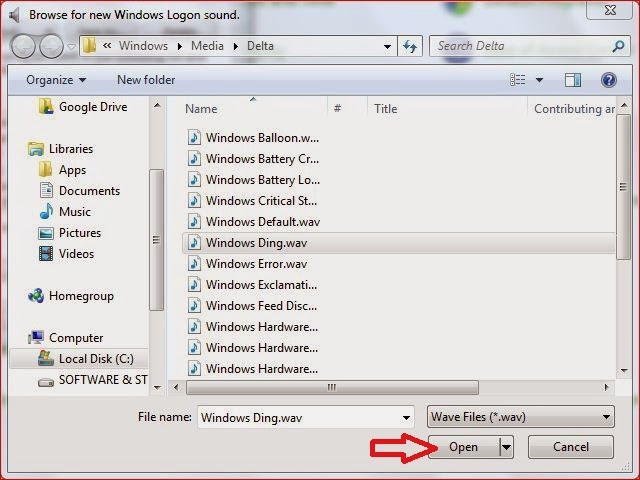
  • And then Click the Browser button For selecting the new sound...
  • Select the Sound and press the open and now apply this.


  • Now your window logon sound will changed....
  • You can also change the many type option like Windows Logoff sound, Error Message, Battery low message, notify message, alarm sound and many more same process for all the things...

Note

It always support .wav  file so if you want to set your own sound then first you convert any mp3 to .wav format and now do this provess..

So Enjoy.....
thanks for visit .this page......